The five icons on the dark strip at the left switch tabs. The ? button at the bottom opens the user manual in your browser. The user interface is English.
Left rail
| Icon | Tab | Purpose |
|---|---|---|
| 1st | Campaign | Play: map, missions, assets, turns, fly or simulate. |
| 2nd | Pilot | Career: rank, XP, medals, mission log. |
| 3rd | Campaign Editor | Design custom campaigns (zones, bases, units). |
| 4th | Mission Editor | Author mission templates (graph, conditions, actions). |
| 5th | Settings | Units, theme, toasts, updates, SimConnect options. |
Campaign
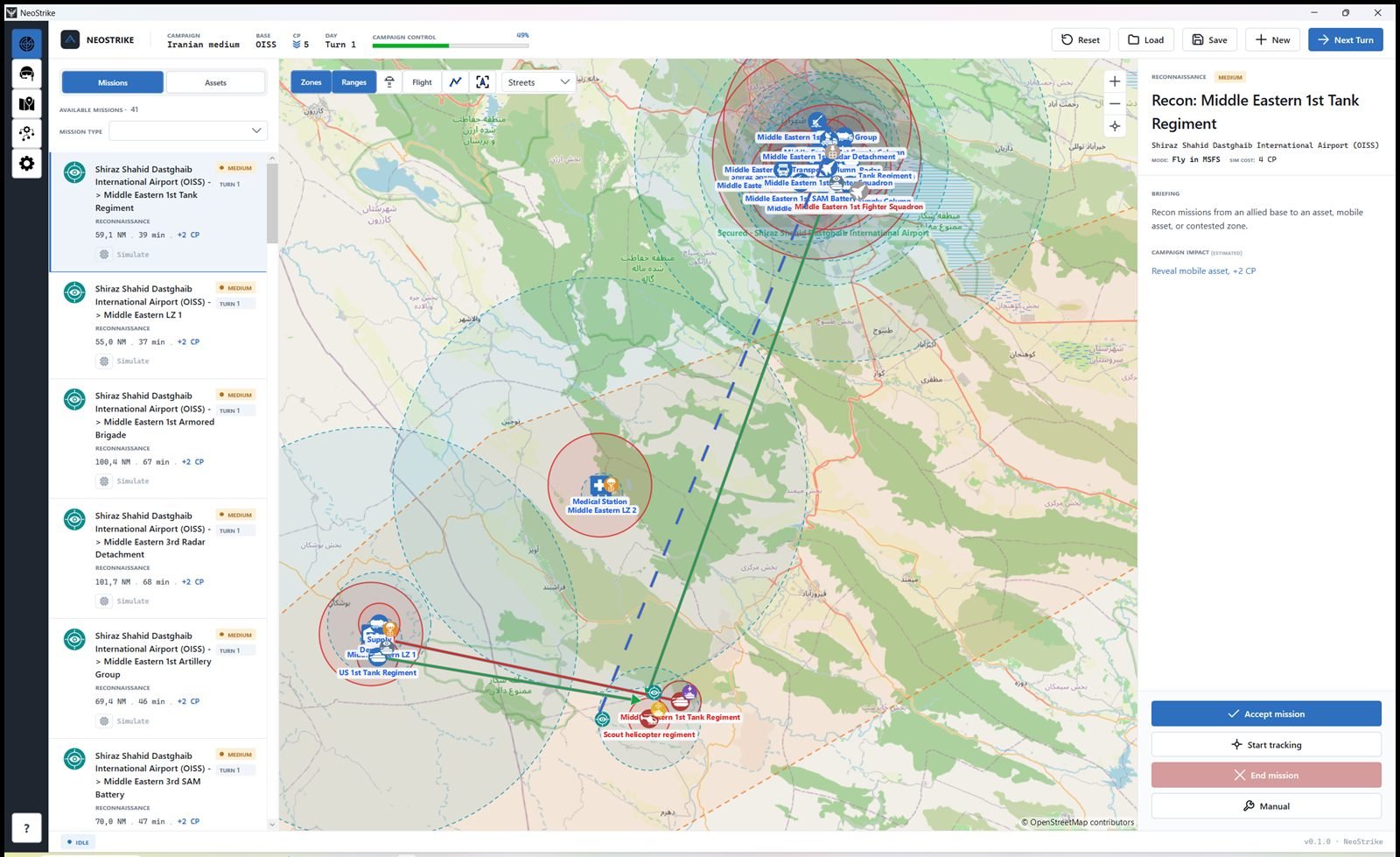
Header
- CP — Command Points. Spent on purchases and on simulating missions.
- Campaign control — overall ally control. Click the bar for per-zone LOG / MOR / INT / AD. Click a zone in that panel to zoom the map onto it.
- New — start from a shipped campaign template.
- Save / Load — in-progress saves under
Data/Save. - Reset — wipe the current run back to a clean template copy.
- Next Turn — resolve movement and combat, then generate new missions. Finish or ignore accepted missions first. The turn report lists allied losses and enemy losses separately.
Map
- Pan and zoom. Basemap: Streets / Satellite / Topo. Toggles: Zones, Ranges, Flight.
- Hold the middle mouse button and drag to measure distance in NM.
- Right-click an ally zone at ≥65% control to buy a land or air unit that already exists in the campaign. You name it, then choose its doctrine. It is created as Mobile. Ships, submarines, and infrastructure are not for sale. Right-click a friendly mobile to change doctrine or repair.
- Every map right-click also has Copy coordinates. The clipboard receives latitude and longitude as
36.236200, -115.034300(six decimals, separated by a comma).
Missions
- Filter by type. The list contains only the mission types enabled for this campaign. Select a card to open the briefing (route, impact, CP reward).
- The briefing body is the objective. A blue Requirements box and an orange Restrictions for all the flight box appear only when the template briefing contains those headings. See Template info. When the template has
GeneratedPayloadorGeneratedPassengerCount, the generated cargo weight or passenger count is added after that briefing text. - Accept mission, then either Start tracking (live MSFS / SimConnect) or flag Simulate (resolved at Next Turn for CP). Simulate is available only when the campaign has Allow mission simulation checked in the Campaign Editor.
- Unaccepted, unflagged missions are ignored when you advance the turn.
Military victory and defeat
A military campaign ends as soon as one of these is true.
- Allied victory — every zone secured. Each zone is under 10% enemy control, so over 90% allied.
- Allied victory — average control. The average allied control of all zones reaches 90%.
- Allied victory — enemy forces destroyed. No enemy infrastructure is left, and no enemy mobile unit is still alive (quantity above 0). A campaign that never placed an enemy unit cannot win this way.
- Defeat. Every zone is under 5% allied control.
The end panel can open during a mission, for example when the last enemy unit is destroyed. Continue returns to the map. View report opens the same summary later.
Buttons
| Where | Button | What it does |
|---|---|---|
| Header | Campaign control (bar) | Opens the zone-control panel (ally % per zone, LOG / MOR / INT / AD). Click again or use Close (×) to hide it. Click a zone row to zoom and center the map on that zone. The panel stays open. |
| Header | Reset | Wipes the current run and reloads a clean copy of the template. Confirms first. Does not delete files under Data/Save. |
| Header | Load | Opens an in-progress save from Data/Save. |
| Header | Save | Writes the current campaign (default folder Data/Save). |
| Header | New | Opens the New Campaign picker (shipped templates). Pick a card to start a new save. × closes without changing the current campaign. |
| Header | Training | Blue button between File and Next Turn. Loads the Nellis training campaign. You can cancel it and return to the campaign that was open. The same action is Restart training in Settings. |
| Header | Next Turn | Resolves movement, combat, simulated missions, then generates a new offer. Finish, cancel, or ignore accepted flyable missions first. Opens the turn report if that setting is on. Destroyed units are split into allied losses and enemy losses. |
| Header | View report | Shown after the campaign ends. Opens the final summary (same as the Victory / Defeat banner on the map). |
| Left list | Missions / Assets | Switches the left column between available missions and the asset list. |
| Left list | Simulate | CPU icon on a mission card. Flags that mission to be resolved for CP at Next Turn instead of flying it. Hidden when the campaign editor has Allow mission simulation turned off, or when the mission is already finished. Cost is shown on the card when flagged. Unflagged, unflown missions are ignored at Next Turn. |
| Left list | All / Allies / Enemies | Asset list only. Filters which map units appear in the list (and typically on the map). |
| Map | Zones | Show or hide campaign zone polygons. |
| Map | Ranges | Show or hide detection / weapon range rings and unit movement paths. |
| Map | Airports | Show or hide airport pins from the airport database (ICAO + runway tooltip on hover). |
| Map | Flight | Hides zones, other units, and every mission except the one selected in the list. Keeps that mission’s route, its departure icon (airbase, LZ, or unit), and its target icon. Works before a flight starts. During a flight the player track and aircraft stay visible. |
| Map |
 Flight plan
|
Enables the flight-plan tool: Ctrl+click to add waypoints, drag to move, right-click to rename, copy coordinates, or delete. Extra bar: Open a .pln, Save .pln to the MSFS folder (not Packages), Clear all waypoints. |
| Map |
 Follow aircraft
|
Keeps the map centered on the player aircraft during an MSFS flight. |
| Mission panel | Accept mission | Takes the selected available mission. Visible only when the mission can still be accepted. Required before Start tracking. |
| Mission panel | Cancel mission | Drops an accepted / in-progress mission without completing it. Visible only when a mission can be cancelled. |
| Mission panel | Start tracking | Starts the live mission graph over SimConnect. Needs MSFS running and the header showing Connected. Simulate-flagged missions do not use this. Starting tracking clears the previous flight’s track and event icons from the campaign map, and loads 100 chaff. See Chaff. |
| Mission panel | End mission | Stops tracking and closes the runtime (abort). Use when you must leave the flight without finishing the graph. |
| Mission panel |


 Interaction buttons
|
Appear during tracking when the graph runs ShowInteractionButton (pickup, drop, switch, …). Icons depend on the action: passengers, cargo, switch. The Settings hotkey (default F8) or joystick button fires the current one even if NeoStrike is not focused. |
| Mission panel | Clear Failures | Shown in the runtime panel if aircraft failures are active. Clears injected NeoStrike / MSFS failures for this flight. |
| Asset panel | Center on map | Pans/zooms the map to the selected infrastructure or unit. |
| Asset panel | Track route | Follows that mobile’s planned movement on the map (Strategic Planner path). |
| Asset panel | Generate mission | Placeholder. Always disabled in this version. |
Right-click the map: on an ally zone at ≥65% control, Buy asset lists only land and air units already in the campaign (not infrastructure, ships, or submarines). You name the unit, then choose its doctrine. It is created as Mobile. The choice does not cost extra CP. On a friendly mobile,
Change doctrine or Repair (needs a SupplyVehicle in the zone). Purchased units can be
deleted for a CP refund. Copy coordinates is always the last item and copies
latitude, longitude with six decimals. On a flight-plan waypoint the same item copies that waypoint.
Hold middle-mouse and drag to measure NM. Scroll wheel zooms
(the + / − icons on the map are not wired).
Start tracking needs Microsoft Flight Simulator running and SimConnect showing Connected in the header. Simulate does not need MSFS.
Chaff
During a tracked flight you start with 100 chaff. The remaining count is the Chaff field in the MSFS tracker bar at the bottom of the Campaign tab. Press F9, or the key or joystick button set under Settings → Flight Tracking, to release one. The binding works even when NeoStrike is not focused, the same way as the mission-action hotkey. Each release plays a sound and leaves a cloud for 5 seconds at the latitude, longitude, and altitude where you dropped it. Releases are not written to the flight log. If at least two live clouds are within 50 m of a SAM missile at the moment it would hit, the missile does not explode. It flies straight, without tracking you, for 5 seconds, then tries to lock you again until its flight time ends.
Pilot
- If
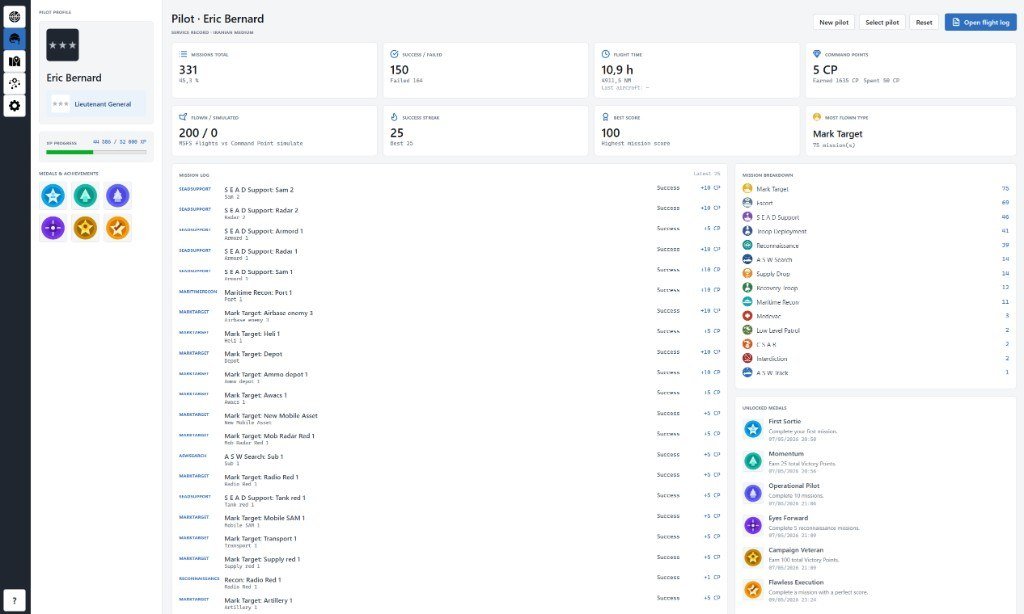
Data/Pilotsis empty at startup, NeoStrike asks for a name. The field suggests John Doe. The name you confirm is the profile file. Results attach to the active profile. - XP and medals come from completed missions and CP spent. Only unlocked medals are shown.
- Training Wings is awarded when you finish the Nellis training campaign. First Victory is awarded the first time a non-training campaign ends in an allied victory. The training campaign does not unlock First Victory.
- Reset clears rank, XP, medals, log, and lifetime CP. The name and file stay.
Buttons
| Where | Button | What it does |
|---|---|---|
| Toolbar | New pilot | Creates a new profile under Data/Pilots. You enter a name; later mission results attach to this file. |
| Toolbar | Select pilot | Switch to another existing profile. The Campaign tab uses the active pilot for XP, medals, and logs. |
| Toolbar | Open flight log | Browse archived logs in Data/FlightLogs and open the Flight log window (map, debrief, raw text). See below. |
| Toolbar | Reset | Clears rank, XP, medals, mission log, and lifetime CP on the loaded pilot. Name and JSON file stay. Confirms first. |
| Toolbar | Delete pilot | Deletes the loaded profile file after confirmation. Rank, XP, medals, and that profile’s mission log are removed. Files in Data/FlightLogs stay. If another profile exists it becomes active; otherwise a new empty pilot named Pilot is created. |
| Flight log window | Flight / Debrief / Raw log | Tabs. Flight = track on the map plus speed / altitude / vertical-speed graphs. Debrief = event list from the log. Raw log = the text file contents. |
| Flight log window | Show in folder | Opens Windows Explorer on the .log file (useful when the on-screen log is truncated). |
| Flight log window | Copy log | Copies the raw log text to the clipboard for bug reports. |
| Flight log window | Close | Closes the viewer and returns to the Pilot tab. |
Flight log
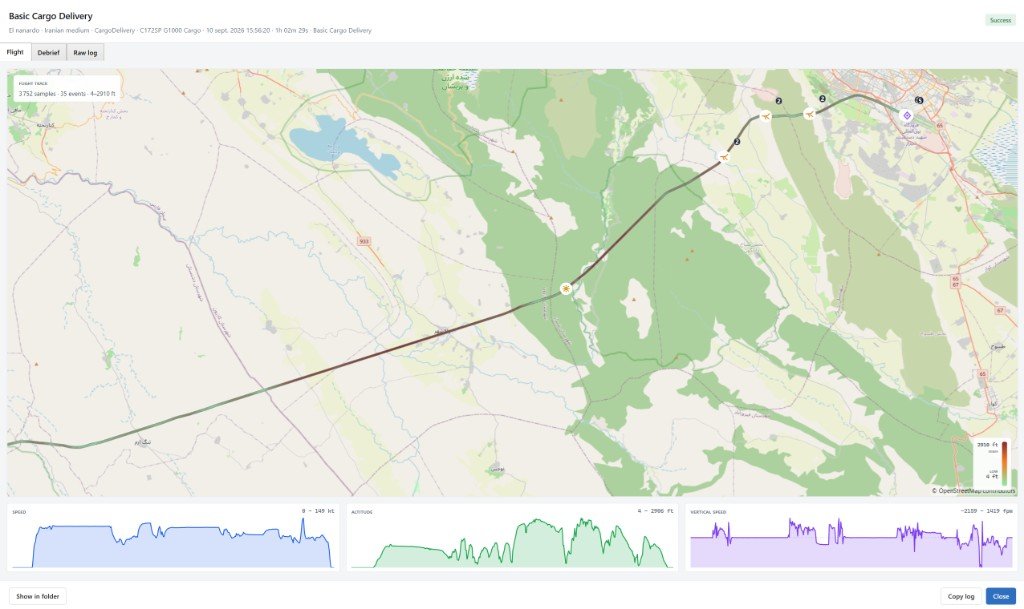
- Open it with Open flight log on the Pilot tab, then pick a file from
Data/FlightLogs. - Flight shows the recorded track on the map. Numbered pins are log events (takeoff, nodes, cargo, landing). The orange aircraft marks the path. The FLIGHT TRACK card lists sample count, event count, and altitude range.
- The three graphs under the map are ground speed (kt), altitude (ft), and vertical speed (fpm) for the whole flight.
- Debrief lists the same events in time order with a short summary of each visit / node.
- Raw log is the text written during tracking (interval from Settings → Flight log interval). Discrete events (gear, lights, takeoff) are always logged immediately.
In-sim EFB
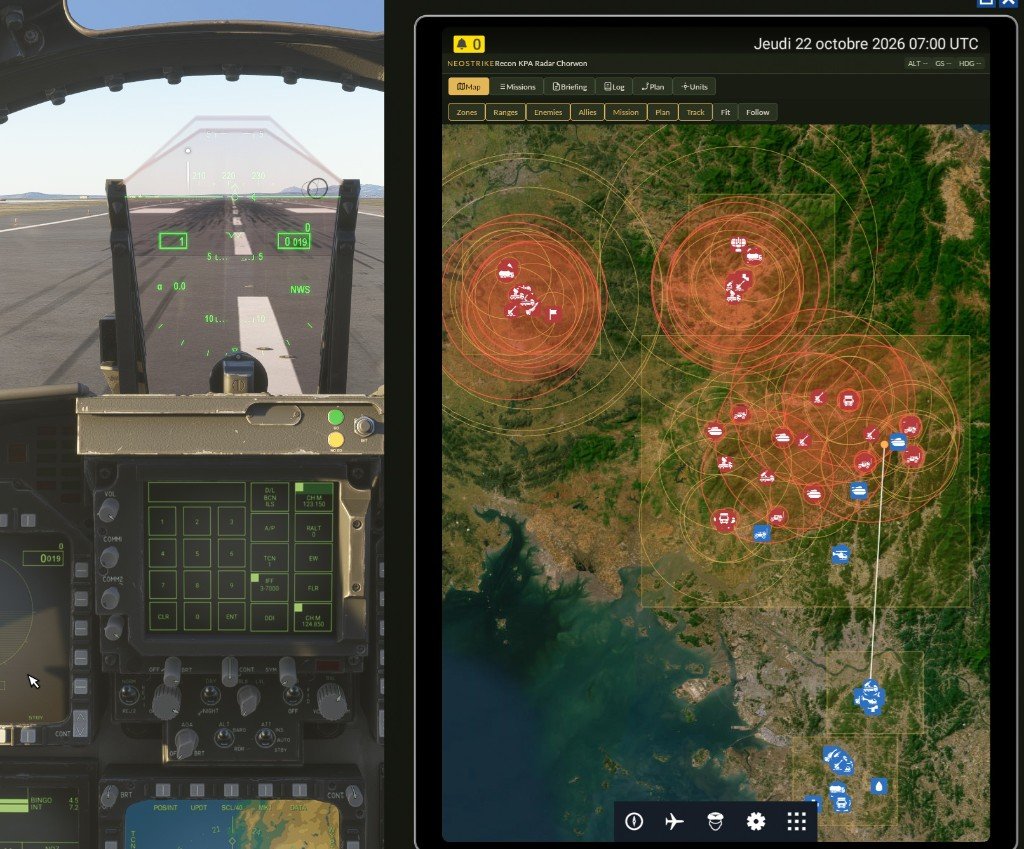
During a flight, NeoStrike can show the campaign inside Microsoft Flight Simulator so you do not have to leave the cockpit to read the map, the briefing, or the log. NeoStrike itself must stay running on Windows.
- Map shows the campaign basemap, the current mission, the flight plan, the live track, and discovered units. Enemy weapon range is the red ring. Detection range is the amber ring. Allies use the same icons as the campaign map. The wheel zooms. Drag to pan. Fit frames the mission. Follow keeps the aircraft in the centre. The blue marker is the aircraft, pointed along the heading.
- Missions lists the campaign missions. Select one, then Accept, Start tracking, Cancel, or End mission. Filter the list by mission type. Status colours match the desktop: gold for accepted, blue for in progress, green for completed, red for failed.
- Briefing, Log (newest line first), Plan, and Units are the same information as the desktop, limited to what the flight needs. Long lists scroll vertically.
- The header shows the mission title, altitude, ground speed, and heading. Undiscovered enemies stay hidden.
Install
- Open Settings and find the MSFS EFB card.
- Click Install EFB and confirm. NeoStrike copies the package into each detected Community folder.
- Restart Microsoft Flight Simulator.
- In MSFS 2024, open NeoStrike on the EFB tablet.
- In MSFS 2020, open NeoStrike from the toolbar. That toolbar package is installed only in the MSFS 2020 Community folder.
The default port is 47321. If Settings says the port is already in use, change EFB port, click Save, install again, and restart the simulator. Open EFB previews the same page in a browser. After a port change, restart MSFS so the installed panel uses the new port.
Campaign Editor
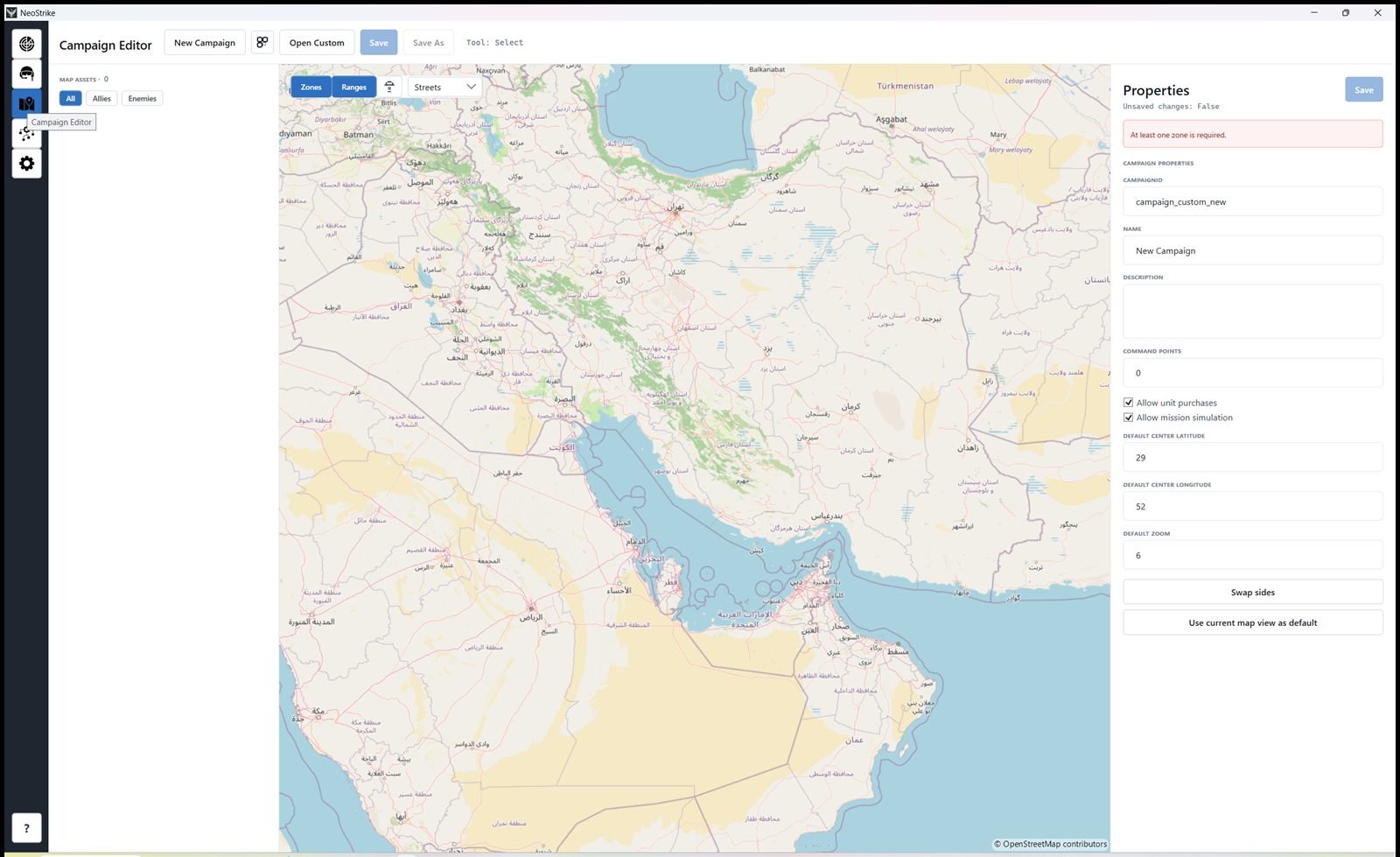
Data/CustomCampaigns only.- Draw zones, place infrastructure and mobile units, set starting CP, map center, and which mission types the campaign may generate.
- Tools: Select, Add Zone, Add infrastructure, Add unit. Right-click to edit or delete. Hold the middle mouse button and drag to measure distance in NM.
- Save before testing in the Campaign tab. Do not overwrite shipped campaigns under
Data/Campaigns. - A red banner (for example “At least one zone is required”) means the template is not valid to play yet.
Buttons
| Where | Button | What it does |
|---|---|---|
| Toolbar | New Campaign | Starts a blank custom campaign (military domain). Draw zones and place assets yourself, then Save As into Data/CustomCampaigns. |
| Toolbar | Random Campaign | Dice icon. Generates a theater around the current map center. Pick Small / Medium / Big, or Cancel. Save it to CustomCampaigns when ready. |
| Toolbar | Open Custom | Opens a JSON from Data/CustomCampaigns only (not the shipped Data/Campaigns packs). |
| Toolbar / Properties | Save | Writes the custom campaign file. Also on the Properties header. |
| Toolbar | Save As | Saves a copy under a new name in CustomCampaigns. |
| Left list | All / Allies / Enemies | Filters the asset list by owner. |
| Map | Zones | Show or hide zone polygons. |
| Map | Ranges | Show or hide detection / weapon range circles. |
| Map | Airports | Show or hide airport pins (ICAO + runway tooltip). |
| Map (while drawing) | Finish Polygon | Closes the zone you are drawing. Needs enough points. |
| Map (while drawing) | Cancel Drawing | Abandons the in-progress zone or shape. |
| Properties | Lock position | Padlock on a selected zone or asset. When on, you can still select it but cannot drag or reshape it on the map. |
| Campaign properties | Swap sides | Turns every Ally into Enemy and every Enemy into Ally. Zone control is inverted to match. |
| Campaign properties | Use current map view as default | Stores the current center and zoom as the campaign’s opening view. |
| Campaign properties | Mission types | Checkboxes for the mission types this campaign may generate. A military campaign lists military types; a civil campaign lists civil types. A new campaign starts with every type checked. Unchecked types are not generated and do not appear in the Campaign tab type filter. Shipped World War II campaigns (Luzon plain and Operation Totalize) leave MarkTarget and ASWSearch unchecked. |
| Zone properties | Redraw Polygon | Clears the current zone outline so you can click a new polygon. |
| Zone properties | Delete Zone | Removes the selected zone. Assets that referenced it need a new ZoneId. |
| Asset properties | Delete Asset | Removes the selected infrastructure or mobile unit. |
Placement tools are on the map context menu (right-click empty map): Add infrastructure, Add unit, Add Zone. On an existing object: Edit, Duplicate, Delete. The header shows the active tool (Select after each place).
The Type combo is filtered by campaign domain: Military or Civil.
Place with Add infrastructure (static) or Add unit (mobile), then edit the Properties panel.
Icons below are the ally map glyphs; enemy units use the red -enemy variant.
Owner, zone, coordinates, Discovered, and Can generate mission apply to every asset.
Static assets (infrastructure)
Shared properties: Id, Name, Type, Owner, ZoneId, Latitude / Longitude, Cost CP (shop prototype),
Detection range (NM), Weapon range (NM). Military also has Strategic value and Defense level.
Civil also has Influence Defense, Level, and Capabilities. SAMSite has a Missile from
Data/Weapons.json.
| Icon | Type | Domain | What it is for | Shop CP | Editor defaults / notes |
|---|---|---|---|---|---|
 |
Airbase |
Military | Main airfield. Departure for flyable missions. Home for Fighter, Bomber, AWACS, Drone, Helicopter. | 25 | Default type when you Add infrastructure on a military campaign. Detection 20 NM, weapon 5 NM, defense 5, value 10 on place. |
 |
FOB |
Military | Forward operating base. Home for MobileRadar, MobileRadio, MobileSAM. | 12 | Not offered in the campaign editor type list, and not sold in the campaign buy menu. Still a valid home for mobile sensors and SAMs if one is already on the map. No dedicated SVG; map falls back. Shown here with the Command Post glyph. |
 |
Radar |
Military | Sensor site. Allied detection reveals nearby enemy assets each turn. | 10 | Raise Detection range (e.g. 40 NM). Often start Undiscovered for enemy radars. |
 |
SAMSite |
Military | Fixed air defence. Engages the player in MSFS using the selected missile. | 15 | Set Weapon range and Missile. SpawnSimObject titles can map to SAMSite. |
 |
SupplyDepot |
Military | Logistics hub. Valid home for Tank, Armored, Transport, SupplyVehicle, Artillery. | — | Place from the editor; not in the in-game shop list. Logistics doctrine favors these. |
 |
LandingZone |
Military | Helo / troop LZ. Home for Helicopter and ground vehicles. Used by troop / LZ mission templates. | — | Editor only (not in shop). Keep Can generate mission on if missions should use it. |
|
CommandPost |
Military | C2 site. Home for ground vehicles and mobile sensors/SAMs. | — | Editor only. High strategic value in typical shipped campaigns. |
 |
Port |
Military | Harbor. Home for Ship and Submarine (with NavalBase). | — | Editor only. Required before placing naval mobiles. |
 |
FuelDepot |
Military | Fuel stockpile. Interdiction / logistics target. | 14 | Shop prototype. Detection / weapon ranges still apply if you set them. |
 |
MedicalStation |
Military | Field hospital. Medevac drop-off / destination. | — | Editor only. Enable Can generate mission for medevac templates. |
 |
AmmoDepot |
Military | Munitions dump. Strike / logistics target. | 14 | Shop prototype. |
 |
NavalBase |
Military | Fleet base. Home for Ship and Submarine. | 22 | Shop prototype. Pair with sea zones for naval campaigns. |
|
FBO |
Civil | Civilian airfield. Default civil infrastructure. Home for Helicopter and some ground units. | 10 | Capabilities LIGHT_CARGO, PAX, VIP, FUEL. Influence Defense 1.5. No dedicated SVG (airbase glyph shown). |
|
CargoHub |
Civil | Freight terminal. Cargo and fuel civil missions. | 14 | Capabilities CARGO, FRAGILE_CARGO, RAVITAILLEMENT, FUEL. Influence 1.2. |
|
PassengerTerminal |
Civil | Passenger airport. PAX / tourism / charter. | 16 | Capabilities PAX, VIP, TOURISM, CHARTER. Influence 1.3. |
|
MedicalCenter |
Civil | Hospital. Civil medevac and catastrophe response. | 12 | Capabilities MEDEVAC, MEDICAL_TRANSPORT, CATASTROPHE_RESPONSE. Influence 1.6. |
|
IndustrialSite |
Civil | Industry. Heavy / fragile cargo contracts. | 15 | Capabilities CARGO, FRAGILE_CARGO, INDUSTRIAL_SUPPLY, HEAVY_SUPPLY. Influence 0.8. |
|
VIPLounge |
Civil | VIP / business aviation. | 12 | Capabilities VIP, BUSINESS_TRAVEL. Influence 1.0. |
|
ReliefDepot |
Civil | Humanitarian stocks. Catastrophe / shortage missions. | 10 | Capabilities HUMANITARIAN, RAVITAILLEMENT, CATASTROPHE_RESPONSE. Influence 1.4. |
Mobile assets (units)
Shared properties: Id, Name, Type, Cost CP, Owner, Home strategic asset (must be a compatible type),
Latitude / Longitude, Doctrine, Detection range, Weapon range, Speed (kt), Quantity (also InitialQuantity for repairs),
Strategic value, Defense, Discovered, Can generate mission.
Air types (Fighter, Bomber, AWACS, Drone, Helicopter) are always Fixed — they do not march on the map.
Ground/sea types need Mobility = Mobile if the Strategic Planner should move them.
MobileSAM has a Missile field like SAMSite.
| Icon | Type | Domain | What it is for | Shop CP | Defaults / constraints |
|---|---|---|---|---|---|
 |
Fighter |
Air (Mil + Civil) | Strike / CAP aircraft. Campaign air unit; MarkTarget-style missions, not map travel. | 24 / 18 civil | Home: Airbase. Default detection 25 NM. Mobility locked Fixed. |
 |
Bomber |
Air (Military) | Strike bomber. Same air rules as Fighter. | 28 | Home: Airbase. Detection 20 NM. Fixed. |
 |
AWACS |
Air (Military) | Airborne radar. Large detection bubble for revealing enemies. | 28 | Home: Airbase. Detection 80 NM. Fixed. |
 |
Drone |
Air (Military) | ISR / light strike UAV. | 16 | Home: Airbase. Detection 22 NM. Fixed. |
 |
Helicopter |
Air (Mil + Civil) | Rotary wing. Troop / medevac / utility. | 18 / 16 civil | Home: Airbase, LandingZone, or FBO. Detection 15 NM. Fixed. |
 |
Ship |
Sea (Military) | Surface combatant / patrol. Can move if Mobility = Mobile. | 20 | Home: Port or NavalBase. New-unit defaults: speed 30 kt, detection 5 NM until you change type/ranges. |
 |
Submarine |
Submarine (Military) | Sub. Often start Undiscovered. ASW / recon targets. | 26 | Home: Port or NavalBase. Uncheck Discovered for hidden boats. |
 |
Tank |
Land (Military) | Armor stack. Quantity = vehicles in the unit; InitialQuantity is full strength for repair. | 18 | Home: Airbase, SupplyDepot, LandingZone, CommandPost, Port, FBO, CargoHub, PassengerTerminal. Detection 8 NM default on type switch. Set Mobility Mobile to march. |
 |
Armored |
Land (Military) | IFV / APC stack. Same home rules as Tank. | 20 | Quantity for combat/repair. Doctrine Offensive / Aggressive / Defensive. |
 |
Transport |
Land (Mil + Civil) | Truck / convoy. Default type when you Add unit. | 12 | Same ground homes. Logistics doctrine. Place defaults: speed 30 kt, cost 5 CP until you match shop values. |
 |
SupplyVehicle |
Land (Mil + Civil) | Supply truck. Required in-zone to repair a damaged allied mobile (1 CP per missing quantity). | 14 / 10 civil | Keep at least one allied SupplyVehicle per fighting zone if you want field repairs. |
 |
Artillery |
Land (Military) | Guns / MLRS. Ground combat support. | 18 | Same ground homes as Tank. Set weapon range for the range ring. |
 |
MobileRadar |
Land (Military) | Movable radar. Detection like a smaller Radar site. | 18 | Home: Airbase, FOB, CommandPost, Radar, SAMSite. Detection 12 NM on type switch. |
 |
MobileRadio |
Land (Military) | C2 / comms vehicle. | 12 | Same homes as MobileRadar. Detection 8 NM default. |
 |
MobileSAM |
Land (Military) | Movable SAM. Missile catalog like SAMSite. Spawn titles can map to MobileAssetType. | 22 | Same homes as MobileRadar. Detection 12 NM. Set Missile + weapon range. |
The campaign buy menu only offers land and air mobiles whose type is already on the map. Infrastructure, ships, and submarines are not sold. The unit is created as Mobile after you choose a doctrine. Shop CP is the price charged for that mobile type. Em dashes mean the type is not in the buy list. Civil campaigns can offer Fighter, Helicopter, Transport, and SupplyVehicle when those units are already present.
Doctrine movement
Set Doctrine on each ground or sea unit. Only units with Mobility = Mobile, Auto-controlled, and Active are considered. Air units never march. Each side starts at most 2 new moves per doctrine per turn, the two with the best score. The destination must be at least 5 NM away, and the score must stay positive: enemy units within 40 NM can cancel the march. The route is drawn immediately; the unit starts moving on the next turn. Speed (kt) is the distance in nautical miles it travels that turn.
“Friendly strength” is Ally % if the unit is allied, Enemy % if it is enemy. “Enemy strength” is the other figure. Land destinations are Airbase, Supply Depot, Landing Zone, Command Post, Port, FOB, and Radar. Ships and submarines only use Port and Naval Base. A neutral site is never an attack target.
| Doctrine | Moves when | Destination |
|---|---|---|
| Offensive | The site belongs to the other side, and its zone is Contested or friendly strength there is below 50. | Hostile land site (or Port / Naval Base for a ship). |
| Aggressive | The site belongs to the other side, and enemy strength in its zone is above 50. A site with no zone is ignored. | Hostile land site (or Port / Naval Base for a ship). |
| Defensive | The site belongs to the unit’s own side, and friendly strength in its zone is below 65. | Friendly land site (or Port / Naval Base for a ship). |
| Logistics | The site belongs to the unit’s own side. | Friendly Airbase, Supply Depot, Landing Zone, Command Post, or Port. |
| Recon | The site’s zone is Contested, or its Intel is below 40. | Any compatible site in that zone, including neutral. |
| Reserve | Friendly strength in the unit’s current zone is below 40. It then uses the same rule as Defensive. | Friendly land site whose zone is below 65 friendly strength. |
Mission Editor
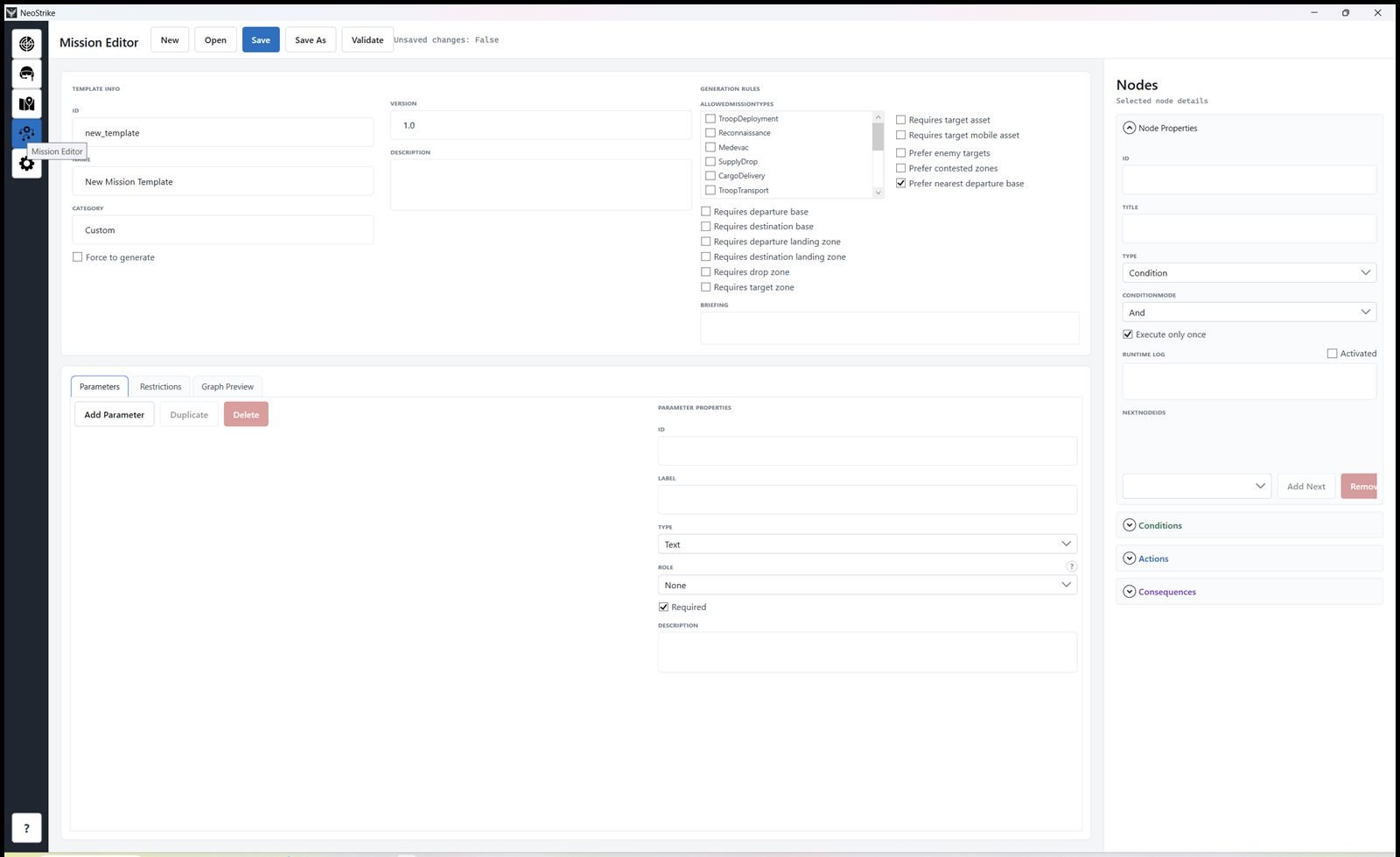
Updates overwrite the original mission templates shipped with NeoStrike, including their JSON and the sound files that came with them. Save is disabled while one of those templates is open. Use Save As first, into its own folder under Data/MissionTemplates, before you change it. The update does not wipe the MissionTemplates folder: a template you created yourself stays, as long as it does not reuse the id of a stock template.
- Templates sit in
Data/MissionTemplates. Use Open for an existing pack (for example troop or ASW), Validate before relying on it in campaign generation. - Parameters are filled by the generator (bases, LZ, target, counts). Roles explain how each value is produced.
- The graph is the live MSFS flow. Each node waits until its conditions pass (And = all, Or = any), then runs its actions. Execute only once prevents the node from firing again.
- Save is disabled on a template shipped with NeoStrike. Use Save As and pick a new id.
Buttons
| Where | Button | What it does |
|---|---|---|
| Toolbar | New | Blank template from scratch (empty graph and parameters). |
| Toolbar | Open | Open a mission template JSON from disk (typically under Data/MissionTemplates). |
| Toolbar | Save | Write the current file. Disabled while a shipped template is open. |
| Toolbar | Save As | Write a copy under a new folder/name for experiments. |
| Toolbar | Validate | Checks missing ids, broken links, and graph consistency. Errors block save; warnings are listed in yellow. |
| Parameters | Add Parameter | Adds a value the generator or runtime can inject into conditions and actions. |
| Parameters | Duplicate | Copies the selected parameter; then change its Id. |
| Parameters | Delete | Removes the parameter. Update any condition/action that still points at that Id. |
| Parameters | ? | Opens the Role help popup (required Type + description for the selected Role). |
| Restrictions | Add Restriction | Adds a global flight rule (max altitude, aircraft title, …) checked every tracking tick. |
| Restrictions | Delete | Removes the selected restriction and its violation consequence. |
| Restrictions | Browse sound | File icon next to Violation Sound. Pick one or more clips; comma-separated names play at random on violation. |
| Graph Preview | Refresh Graph | Redraws the preview after edits if it looks stale. |
| Graph Preview | Auto Layout | Repositions nodes automatically. |
| Graph Preview | Fit Graph | Zooms so every node is visible. |
| Graph Preview | Snap to Grid | Toggle. Dragged nodes align to the grid. |
| Node panel | Add Next / Remove | Link the selected node to another node id, or remove that outgoing link. You can also drag from an output circle to an input circle on the graph. |
| Node panel | Add / Delete (Conditions) | Add or remove a condition on the selected node. |
| Node panel | Add / Delete (Actions) | Add or remove an action that runs when the node’s conditions pass. |
| Node panel | Add / Delete (Consequences) | Add or remove a score / success / fail consequence after the node executes. |
| SpawnSimObject action | Add / Remove (Titles) | Add a SimObject title row for another campaign target type, or remove a row (Default always stays). |
Graph canvas right-click: Add Node (by type), Undo / Redo. Node right-click: Edit, Duplicate, Delete. Connection right-click: Remove connection. Browse sound on PlaySound actions uses the same file-icon button.
Template Info
The top card is the template identity plus Generation Rules. The campaign generator uses these flags to decide whether this graph can be offered, and which bases / LZ / targets it needs. Required location roles on the Parameters tab should match the Requires… checkboxes.
| Field | Description |
|---|---|
| Id | Stable unique id. Campaign missions store it as Mission.TemplateId. Do not rename once a save references it (folder names under Data/MissionTemplates usually match). |
| Name | Short display name in the editor and template list. |
| Category | Optional grouping label (Recon, Cargo, CAS, Training, …). Used for designer organisation; empty AllowedMissionTypes can also fall back to name/category when selecting a template. |
| Force to generate | Each turn the campaign creates at least one mission from this template even if strategy would skip it. Bases, targets, and other Requires… flags must still be satisfiable; otherwise generation reports what is missing. |
| Version | Version string (default 1.0). Bump it when you change structure or behaviour. |
| Description | Designer notes only (intent, special setup). Not shown to the player. The player-facing text is Generation Rules → Briefing. |
| AllowedMissionTypes |
Check every campaign MissionType this graph may fill. Multiple types are allowed.
Leave the list empty and the selector warns and falls back to name/category.
Military types: TroopDeployment, Reconnaissance, Medevac,
SupplyDrop, CargoDelivery, TroopTransport, TroopDrop,
CSAR, MarkTarget, SEADSupport, ASWSearch,
MaritimeRecon, Escort, RecoveryTroop.
|
| Requires departure base | Need an allied Airbase before the mission is created. Pair with parameter role DepartureBase. |
| Requires destination base | Need an allied destination Airbase. Pair with DestinationBase. |
| Requires departure landing zone | Need an allied LandingZone as start. Pair with DepartureLandingZone. |
| Requires destination landing zone | Need an allied LZ as destination. Pair with DestinationLandingZone. |
| Requires drop zone | Need a drop/delivery point (zone centre, LZ, or target asset). Pair with DropZone. |
| Requires target zone | Need a campaign zone as area of operations. Pair with TargetZone. |
| Requires target asset | Need an enemy (or allowed) strategic asset as the mission target. Pair with TargetAsset. |
| Requires target mobile asset | Need a mobile unit as the mission target. Pair with TargetMobileAsset. |
| Prefer enemy targets | When several targets qualify, pick enemy assets first. |
| Prefer contested zones | When several zones qualify, prefer contested ones. |
| Prefer nearest departure base | Use the nearest allied Airbase as departure when possible. Default on for new templates. |
| Briefing |
Player-facing text on the Campaign tab when this template is used. Leave empty to keep the generator’s built-in briefing.
Text before any heading is the objective. To show the blue Requirements box, add a line that is exactly Requirements:, then one bullet per line starting with - .
To show the orange “Restrictions for all the flight” box, add a line that starts with Restrictions (for example Restrictions:), then the same - bullets.
A later line that is not a bullet returns to the objective and is not listed in those boxes. Units written as NM, ft, kt, or lb are converted to the unit system from Settings when the briefing is shown.
|
JSON-only generation keys (not on this card) also exist for civil / advanced filtering:
Domain, NeedTypes, RequiredCapabilities,
AllowedTargetZoneOwners, AllowedTargetAssetTypes,
AllowedTargetMobileAssetTypes, BaseInfluencePoints, BaseRP.
Template CommandPointCost is the Simulate CP cost (0 = per-type default) and is not on Template Info either.
Restrictions
The Restrictions tab is a list of global rules (stored as guidelines in JSON). Each update while tracking
checks every restriction. If the comparison fails, the restriction fires once
(sound + consequence), then is remembered for the rest of that flight so it does not spam.
This tab does not fill the orange box on the Campaign briefing. That box is written in Template info → Briefing,
under a Restrictions: heading.
| Field | Description |
|---|---|
| Id | Unique id in runtime logs. Short and stable, e.g. max_alt. |
| Type | What is measured. See the type table below. Changing Type fills a default Operator and NumericValue. |
| Operator |
How the live value is compared to the threshold.
Numeric types: Equal, NotEqual, GreaterThan, GreaterThanOrEqual, LessThan, LessThanOrEqual
(InsideRadius / OutsideRadius are listed but are meant for Position conditions, not restrictions).
AircraftTitle only: Equal, NotEqual, Contains, NotContains (case-insensitive).
Defaults: Max* / LandingSpeed / MaxFlightTime → LessThanOrEqual; MinSpeed / MinAltitude → GreaterThanOrEqual.
|
| NumericValue | Threshold for numeric types. Units follow the type (kt, ft, seconds). Hidden for AircraftTitle. If empty, the optional ParameterId number is used instead. |
| TextValue | Only for AircraftTitle. Compared to the MSFS TITLE simvar (case-insensitive). Example: a substring of the aircraft title. |
| ParameterId | Optional. Number parameter used when NumericValue is empty. Hidden for AircraftTitle. Pick an id from the Parameters tab. |
| Description | Designer note. Not shown to the player unless you copy the same text into Message. |
| Consequence Type |
Fired once on first violation.
Penalty subtracts PenaltyPoints from score (default 10).
Failure fails the mission and subtracts PenaltyPoints (default 25).
MissionFailed / Crash fail the mission and set score to 0.
MissionSuccess completes the mission (unusual on a restriction).
|
| PenaltyPoints | Visible for Penalty and Failure. Score points removed. Use 0 if you only want the message / sound. |
| Message | Written to the runtime log (and flight events) when the restriction fires. |
| Violation Sound | Sound file name(s) played once on violation. Comma-separated list = one file chosen at random. Browse from the template Sounds folder. Example: alert.wav, warning.mp3. |
Restriction types
| Type | Compared value | How to use it |
|---|---|---|
MaxSpeed |
Ground speed (kt) | Ceiling speed for the whole flight. Default NumericValue 140, Operator LessThanOrEqual. Typical: stay at or below the drop / recon envelope. |
MinSpeed |
Ground speed (kt) | Floor speed. Default 40, GreaterThanOrEqual. Fires if the aircraft is too slow (including hover if you set a high floor). |
LandingSpeed |
Ground speed (kt), always | Same simvar as MaxSpeed/MinSpeed, not limited to the landing flare. Default 70, LessThanOrEqual. Use a node condition (Landing + Speed) if the limit should apply only on the ground. |
MaxAltitude |
Altitude (ft) | Ceiling. Default 1000, LessThanOrEqual. Common recon / nap-of-the-earth cap. |
MinAltitude |
Altitude (ft) | Floor. Default 100, GreaterThanOrEqual. Fires if you fly too low (including on the ground if the floor is above 0). |
MaxFlightTime |
Seconds since mission start | Time limit. Default 1800 (30 min), LessThanOrEqual. Fires once when elapsed time exceeds the threshold. |
AircraftTitle |
MSFS TITLE string | Restrict which aircraft may fly the mission. Set TextValue and Equal / Contains. Example: Contains UH-60. NumericValue and ParameterId are hidden. |
FlapsPosition |
— | Listed in the Type combo but not implemented (live value is treated as 0). Do not rely on it; use a node condition if you need flaps. |
LightsState |
— | Same: listed, not implemented. Use node conditions for lights. |
Restrictions are global (every tracking tick), unlike node conditions which run only on the active node. Prefer a restriction for “never exceed 500 ft”. Prefer a node condition for “below 500 ft only while over the recon area”.
Parameter roles
On the Parameters tab, each parameter has a Role that tells the generator how to fill it
when a campaign mission is created. Choosing a role also forces Type (shown in the editor
as the required type). Bind conditions and actions to the parameter Id, not to the role name.
| Role | Type | Description |
|---|---|---|
None |
Any | No automatic resolution. Set the value in the editor or leave the default. Use for fixed text, a hardcoded location, or a number that must not scale with difficulty. |
DepartureBase |
Location |
Nearest allied Airbase, excluding the destination when that is also an Airbase. Sets the mission departure coordinates. Enable Requires departure base on generation rules if this role is required. |
DestinationBase |
Location |
Mission target Airbase, or the nearest allied Airbase if no specific target is set. Sets destination coordinates. |
DepartureLandingZone |
Location |
Allied Landing Zone, always different from the destination LZ. Departure LZ coordinates. Pair with Requires departure landing zone. |
DestinationLandingZone |
Location |
Target Landing Zone when the mission target is a LZ, otherwise the nearest allied LZ. Destination LZ coordinates. |
StopOverBase |
Location |
Allied Airbase used as an intermediate stop between departure and destination. Never the departure or destination base, and never the same base as the previous stop. Add several StopOver parameters for multiple stops; generation fails if no valid base remains. |
StopOverLZ |
Location |
Allied Landing Zone used as an intermediate stop. Same uniqueness rules as StopOverBase. Generation fails if no valid LZ remains. |
DropZone |
Location |
Mission target (strategic asset, zone, or mobile asset). Cargo drop or delivery point. Default radius typically 1 NM. |
ReconArea |
Location |
Target asset or zone position. Center of the area to reconnoitre. Default radius typically 1.5 NM. |
TargetZone |
Location |
Campaign zone used as the area of operations. Requires target zone on generation rules when this role is required. |
TargetAsset |
Location |
Enemy strategic asset assigned as the mission target. Returns that asset’s geographic position. |
TargetMobileAsset |
Location |
Enemy mobile asset assigned as the mission target. Returns its current position. |
TargetMobileDestination |
Location |
Planned destination of the target mobile asset. Use when the unit is moving and the player should intercept the route, not the current plot. |
RandomAllyZoneLocation |
Location |
Random point inside a random ally-controlled zone (possession ≥ 65%). Mission is not generated if no ally zone exists. Casualty pickup and other sites without an airport, LZ, or drop zone. |
RandomEnemyZoneLocation |
Location |
Random point inside a random enemy-controlled zone (possession < 35%). Mission is not generated if no enemy zone exists. Behind-the-lines recovery and similar objectives. |
GeneratedNumber |
Number |
Numeric value appropriate to the template. Scales with mission difficulty. Use Min / Max on the parameter to clamp the result. |
GeneratedTimer |
Number |
Timer duration in seconds. Scales with difficulty (easy = longer, hard = shorter). |
GeneratedAltitude |
Number |
Altitude in feet. Scales with difficulty (easy = higher, hard = lower). |
GeneratedRadius |
Number |
Radius in nautical miles. Scales with difficulty (easy = larger, hard = smaller). Often used as the search / recon radius. |
GeneratedSpeed |
Number |
Speed in knots. Scales with mission difficulty. |
GeneratedPayload |
Number |
Cargo payload in kg. When Min and Max are both set, the campaign picks a value in that range. Otherwise it scales with difficulty (easy = lighter, hard = heavier). The chosen weight is shown after the briefing. Bind LoadCargo to this parameter id. |
GeneratedPassengerCount |
Number |
Passenger (or troop / patient) count. When Min and Max are both set, the campaign picks a value in that range. Otherwise it scales with difficulty (easy = fewer, hard = more). The chosen count is shown after the briefing. Bind LoadPassengers / LoadTroops / PickupPatients to this id. |
BooleanFlag |
BooleanFlag |
True/false state used by SetBooleanFlag actions and BooleanFlag conditions to track events in the graph (cargo loaded, objective done, …). |
Counter |
Counter |
Integer counter for loops, trigger activations, or cumulative events. Pair with Set / Increment / Decrement / ResetCounter and Counter conditions. |
Timer |
Timer |
Countdown or elapsed duration. Pair with StartTimer / ResetTimer actions and Timer conditions. Distinct from GeneratedTimer, which only fills a numeric duration at generation. |
Location roles produce a position (lat/lon, name, radius NM) that Position and Distance conditions can use.
GeneratedTimer is a Number filled at generation; the Timer role is a live
runtime timer id. Generation rules (Requires departure base, Requires drop zone, …) must match the location
roles you mark as required, or the template will not bind.
Conditions
Add conditions on the selected node (right panel). Set Type, then fill the fields that appear (ParameterId, Operator, Value, FlagId, Trigger ID, Collection ID, …). Units: feet for altitude, knots for speed, signed degrees for pitch/bank, degrees for heading, nautical miles for distance, seconds for timers.
| Type | What it is for | How to use it |
|---|---|---|
Position | Aircraft is inside or outside a location radius (base, LZ, target). | ParameterId = Location parameter. Operator: InsideRadius / OutsideRadius. Radius comes from the parameter (NM). |
Distance | Distance to a Location parameter, with a numeric threshold. | ParameterId = Location. Operator InsideRadius / OutsideRadius / Equal. Value = NM (or a Number parameter). |
Altitude | Sim altitude in feet. | Operator + Value (ft), or a Number parameter in ParameterId. |
Speed | Ground speed in knots. | Operator + Value (kt), or a Number parameter. |
Heading | Aircraft heading versus a location or an absolute heading. | ParameterId = Location (bearing to that point) or leave empty. Value = heading or tolerance in degrees, with Operator. |
AttitudePitch | Nose up/down. Signed degrees (MSFS radians are converted already). | Value e.g. -30 (nose down). Operator GreaterThan / LessThan / Equal. |
AttitudeBank | Roll left/right. Signed degrees. | Same as pitch. Negative and positive are opposite banks. |
Takeoff | Aircraft is airborne (not on ground). | Usually Value true. Does not check airport — only wheels-up. |
Landing | Aircraft is on the ground. | Value true. Any ground contact counts, not only the destination. Combine with Position if the landing must be at a specific place. |
EngineStarted / EngineStopped | Engine running or not. | Value true. Typical “shutdown at parking” node after a Position check. |
Crash | Sim reports a crash. | Value true. Use on a failure branch. |
Timer | Elapsed time since a StartTimer action. | TimerId must match the action. Value = seconds. Operator GreaterThanOrEqual for “wait N seconds”. |
BooleanFlag | Runtime flag set by SetBooleanFlag or a consequence. | ParameterId or FlagId = flag name. Value true/false. |
Counter | Runtime counter (buoys dropped, loops, …). | CounterId. Operator + Value (number). |
ManualTrigger | Player clicked an on-screen interaction button. | Trigger ID = the ShowInteractionButton TriggerId. Pair with ClearManualTrigger after use if the button can be pressed again. |
SoundFinished | A PlaySound clip has finished. | Sound = file name (or comma list). Waits until any listed sound ends. |
Payload | Generic payload check (weight / loaded state from parameters). | ParameterId + Operator + Value as required by the payload parameter. |
AircraftLoaded | Tracking is running and an aircraft state is available. | Value true. Useful as a start-node gate. |
CargoLoaded / CargoUnloaded | Cargo load flags after LoadCargo / UnloadCargo. | Value true. Does not by itself check that you are at the warehouse — add Position. |
PassengersLoaded / PassengersUnloaded | Passenger flags after Load / UnloadPassengers. | Same pattern. Use PassengerCountAtLeast if the count matters. |
TroopsLoaded / TroopsDeployed | Troop pickup vs drop. | After LoadTroops / DeployTroops. Gate with Position at pickup LZ vs destination. |
PatientsLoaded / PatientsDroppedOff | Medevac onboard vs delivered. | After PickupPatients / DropOffPatients. |
SuppliesLoaded / SuppliesDropped | Supply load vs airdrop/delivery. | After LoadSupplies / DropSupplies. |
PayloadWeightAtLeast | Cargo weight (lb) is at least a threshold. | Value or CargoPayload parameter. Default parameter id CargoPayload. |
PassengerCountAtLeast | Passenger count ≥ threshold. | Value or PassengerCount parameter. |
TroopCountAtLeast | Troop count ≥ threshold. | Value or TroopCount. |
PatientCountAtLeast | Medevac patient count ≥ threshold. | Value or MedevacPatients. |
SuppliesCountAtLeast | Supplies count ≥ threshold. | Value or SuppliesCount. |
AircraftFailureActive | Any injected aircraft failure is active. | Value true. After TriggerAircraftFailure / specific failure actions. |
EngineFailureActive | Engine failure flag. | Pair with TriggerEngineFailure. |
ElectricalFailureActive | Electrical failure flag. | Pair with TriggerElectricalFailure. |
FuelLeakActive | Fuel leak flag. | Pair with TriggerFuelLeak. |
AvionicsFailureActive | Avionics failure flag. | Pair with TriggerAvionicsFailure. |
RadioFailureActive | Radio failure flag. | Pair with TriggerRadioFailure. |
SpawnedObjectExists | A SpawnSimObject is currently in the world. | ParameterId / object id of the spawn. Value true. |
SpawnedObjectDestroyed | That spawned object was destroyed. | Same object id. For SEAD / kill-target graphs. |
DistanceToSpawnedObject | Distance aircraft ↔ spawned object. | Object id + Operator + Value (NM). |
InsideSpawnedObjectRadius | Aircraft inside the spawn’s radius. | Object id. Radius from the spawn options. |
DistanceToRuntimePosition | Distance to a runtime position id (often a spawn’s Runtime Position ID). | Runtime Position ID + Operator + Distance (NM). |
MinimumDistanceFromRuntimePositionCollection | Aircraft is at least N NM from every point in a collection (e.g. spacing buoys). | Collection ID must match SavePlayerPositionToRuntimeCollection. Distance parameter in NM. |
MaximumDistanceFromRuntimePositionCollection | Aircraft is within N NM of at least one point in the collection. | Same Collection ID + distance parameter. Search / proximity. |
RuntimePositionCollectionCount | How many points were saved in the collection. | ParameterId / CollectionId + Operator + Value (count). |
RuntimePositionCollectionExists | The collection exists and is non-empty. | Collection id. Value true. |
Types hidden from the Type combo because they are not implemented:
CockpitAction, PassengerCount (use PassengerCountAtLeast),
ReturnToMsfsHome.
Actions
When the node’s conditions pass, actions run in list order. Many need a ParameterId or TargetId (timer id, flag id, object id, trigger id). Load actions read counts/weights from Parameters.
| Type | What it is for | How to use it |
|---|---|---|
PlaySound | Play a cue from the template Sounds folder. | Value = file name, or comma-separated list (one is picked at random). Pair with SoundFinished if the next node must wait. |
StartTimer | Start (or restart) a named timer from now. | TargetId / ParameterId = TimerId. Then a Timer condition on a later node. |
ResetTimer | Clear that timer. | Same TimerId. |
SetBooleanFlag | Set a runtime true/false flag (detected, armed, …). | TargetId = flag name. Value true/false. Read later with BooleanFlag. |
SetCounter | Set a counter to an exact number. | TargetId = CounterId. Value = number. |
IncrementCounter / DecrementCounter | Add or subtract (default 1). | TargetId + optional Value amount. |
ResetCounter | Set the counter to 0. | TargetId = CounterId. |
EndMission | Complete or fail the mission immediately. | Value success or failed / failure. |
LoadCargo / UnloadCargo | Mark cargo onboard or delivered; updates estimated weight for MSFS. | LoadCargo ParameterId = CargoPayload (lb). Unload clears weight. Check with CargoLoaded / CargoUnloaded / PayloadWeightAtLeast. |
LoadPassengers / UnloadPassengers | PAX pickup / drop-off. | LoadPassengers ParameterId = PassengerCount. |
LoadTroops / DeployTroops | Troop pickup / insertion. | LoadTroops ParameterId = TroopCount. |
PickupPatients / DropOffPatients | Medevac load / hospital drop. | PickupPatients ParameterId = MedevacPatients. |
LoadSupplies / DropSupplies | Supply load / drop. | LoadSupplies ParameterId = SuppliesCount. |
ShowInteractionButton | Show a clickable button in the campaign UI (Drop buoy, Deploy, …). | Fill Label, TriggerId, optional IconKey. A later ManualTrigger waits on that TriggerId. |
HideInteractionButton | Remove the button. | TargetId = button id or TriggerId. |
EnableInteractionButton / DisableInteractionButton | Grey out or re-enable without removing it. | TargetId = button / trigger id. |
ClearManualTrigger | Reset the click latch so the player can press again. | TargetId = TriggerId. Use after a repeatable button (multiple buoy drops). |
TriggerAircraftFailure | Inject a failure (type in Value, default Random). | Value e.g. Random / Engine. Pair with AircraftFailureActive. |
TriggerEngineFailure | Engine failure specifically. | Optional TargetId FailureId. |
TriggerElectricalFailure | Electrical failure. | Same pattern. |
TriggerFuelLeak | Fuel leak. | Same pattern. |
TriggerAvionicsFailure | Avionics failure. | Same pattern. |
TriggerRadioFailure | Radio failure. | Same pattern. |
TriggerRandomFailure | Random failure type. | Same pattern. |
ClearAircraftFailure | Clear one failure or all. | Value / TargetId = FailureId or All. |
SpawnSimObject | Spawn a SimConnect object (vehicle, SAM, sub, …) in MSFS. | Spawn table: Type/Title mappings, Object ID, source position parameter, radius, optional movement. Title is chosen from the target type or Default. |
DespawnSimObject | Remove one spawned object. | TargetId = Object ID. |
DespawnAllSimObjects | Remove every spawn for this mission. | No id needed. Also runs automatically when the mission ends. |
SetMissionTargetToSpawnedObject | Retarget the mission objective to a live spawn (e.g. detected submarine). | TargetId = Object ID. ParameterId = runtime position id to update. |
SavePlayerPositionToRuntimeCollection | Store the aircraft lat/lon in a named list (DroppedBuoys, …). | Collection ID, Name Prefix, Radius NM. Check Add Map Icon and pick Icon Key (sonobuoy, cargo, …) to draw that icon on the campaign map. |
SaveSpawnedObjectPositionToRuntimeCollection | Same list, but from a spawn’s position. | Collection ID + Object ID. Same Add Map Icon / Icon Key fields in JSON. |
ClearRuntimePositionCollection | Empty the list (and those map icons). | Collection ID. |
RemoveLastRuntimePositionFromCollection | Undo the last save (last buoy). | Collection ID. |
AddMapIcon | Standalone “place icon” action (legacy). | Prefer SavePlayerPositionToRuntimeCollection with Add Map Icon. This combo type currently only writes a runtime log line. |
Types hidden from the Action combo because they are not implemented:
TriggerFailure, CockpitAction, NeoStrikeAction,
ChangeAircraftWeight, ChangeFuel, plus obsolete
SpawnObject3D / DespawnObject3D (use SpawnSimObject / DespawnSimObject).
Settings
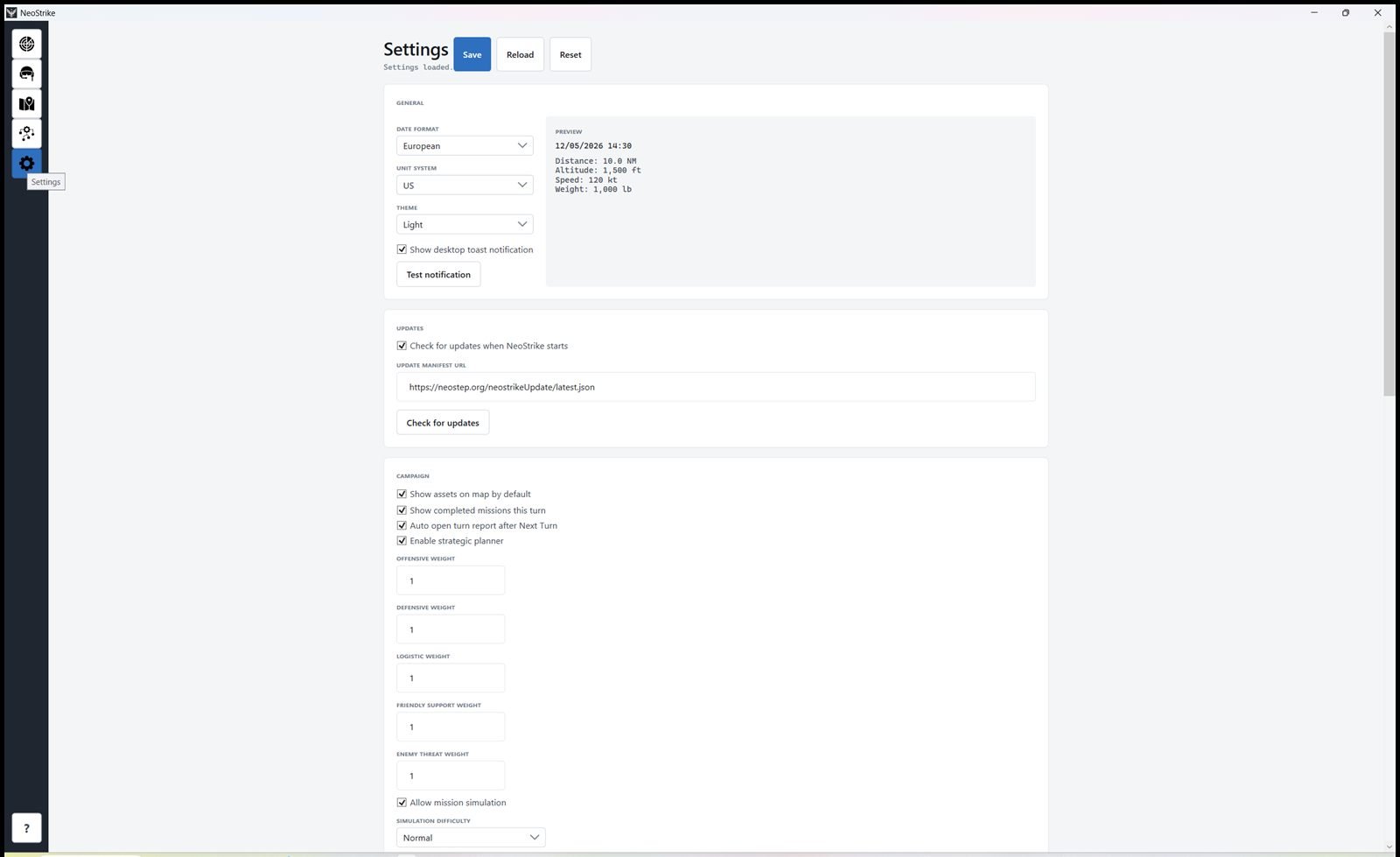
Data/settings.json. Reload discards unsaved edits. Reset restores defaults.One long page, grouped into cards. The Preview panel on General shows date and units live. Theme preview applies immediately; everything else needs Save.
Buttons
| Where | Button | What it does |
|---|---|---|
| Header | Save | Writes every field on this page to Data/settings.json. Required for persistence (except Theme, which previews at once). |
| Header | Reload | Discards unsaved edits and reloads the file from disk. |
| Header | Reset | Restores factory defaults for all settings. Does not delete pilots or campaign saves. |
| General | Test notification | Shows a desktop toast immediately, without saving. Use it to check that toasts appear over MSFS. |
| Updates | Check for updates | Looks up the manifest URL now (same check as startup). You can still decline the install. |
| License | Activate | Opens the license dialog. Enter the purchase email and the NS-XXXX-XXXX-XXXX-XXXX key from the confirmation message. A license covers up to three computers. |
| License | Deactivate this computer | Removes the license from this PC (and frees one activation slot if the server is reachable). NeoStrike will ask for a key again if a license is required. |
| License | Buy a license | Opens the NeoStrike purchase page in your browser. |
| Campaign | Restart training | Loads the Nellis training campaign and walks through mission select, accept, tracking, debrief, next turn, and a simulated strike. You can cancel it and return to the campaign that was open. The same prompt is offered once on first launch. |
| Flight Tracking | Download SimConnect objects | Downloads NeoStrikeObjects.zip and copies neostep-neostep and neofly-neofly-smokes into every MSFS Community folder, replacing folders of the same name. The zip and the two local copies under assets are deleted after a successful copy. Startup does this automatically when either folder is missing. If both are already installed, startup does nothing. |
| Flight Tracking | Clear | Unbinds the keyboard hotkey or the joystick button beside that field. Click the key field, then press a new key (optional Ctrl / Alt / Shift). Click the joystick field, then press a stick, throttle, or gamepad button. Save to apply. Both work while NeoStrike is not focused. |
| MSFS EFB | Install EFB | Copies NeoStrike into each detected Community folder, after a confirmation. MSFS 2024 receives the EFB tablet. MSFS 2020 receives a toolbar panel, and that panel is not copied into a 2024 Community folder. Restart the simulator afterwards. See In-sim EFB. |
| MSFS EFB | Open EFB | Opens the same page in a browser so you can check the map without starting MSFS. NeoStrike must stay running. |
Checkboxes and numeric fields are listed in the catalog below.
| Group | Setting | Description |
|---|---|---|
| General | Date format | European = dd/MM/yyyy 24-hour. English = MM/dd/yyyy 12-hour AM/PM. Default European. |
| General | Unit system | US = NM, feet, knots, pounds. International = km, metres, km/h, kg. Default US. Used in UI labels and previews, not in mission JSON (templates stay NM / ft / kt). |
| General | Theme | Light or Dark. Preview applies at once; Save to keep it. Default Light. |
| General | Show desktop toast notifications | Mission runtime logs, rank promotions, and rewards even when NeoStrike is minimized or MSFS has focus. Does not steal keyboard focus. Default on. Use Test notification to preview without saving. |
| Updates | Check for updates when NeoStrike starts | Looks online for a newer version at launch. You can still decline the install. Default on. |
| Updates | Update manifest URL | HTTPS URL of latest.json for the update package. Default https://neostep.org/neostrikeUpdate/latest.json. Check for updates runs the same check immediately. |
| License | Licensed to / License key | Read-only. Shows the purchase email and key stored for this Windows user in %LOCALAPPDATA%\NeoStrike\license.dat. A purchase is perpetual; NeoStrike only refreshes the local ticket online about every 7 days. |
| Campaign | Show assets on map by default | Campaign map shows infrastructure and units when you open a save. Default on. |
| Campaign | Auto open turn report after Next Turn | Opens the turn report dialog after you advance the campaign. Default on. |
| Campaign | Offensive weight | Planner destination score multiplier for offensive need (0–5). Default 1. Raise to push units toward attack. |
| Campaign | Defensive weight | Same for defensive need (0–5). Default 1. Raise to hold ground and cover threatened zones. |
| Campaign | Logistic weight | Same for logistic and recon needs (0–5). Default 1. |
| Campaign | Friendly support weight | Bonus for destinations near friendly forces (0–5). Default 1. Higher = units cluster with allies. |
| Campaign | Enemy threat weight | Penalty for destinations near enemy forces (0–5). Default 1. Higher = units avoid hot zones unless doctrine says otherwise. |
| Campaign | Simulation difficulty | Bonus/malus on simulated success chance: Easy +10%, Normal 0%, Hard −10%. Default Normal. |
| Pilot | Max mission logs displayed | How many log entries the Pilot tab lists. Default 50. Older flights stay on disk under Data/Pilots. |
| Campaign Editor | Default new zone ally strength | Ally possession (0–100) applied to a newly drawn zone. Default 50 (contested). |
| Mission Editor | Show graph warnings | Highlights missing bindings, unused parameters, and other Validate issues on the graph. Default on. |
| Flight Tracking | Show runtime debug panel | During a tracked mission, shows the SAM debug line in the MSFS tracker bar and draws the missile’s predicted path and the path already flown on the map. The missile marker itself stays visible when this is off. Default on. The rest of the tracker bar (aircraft, position, node, score, and the chaff count) is shown for every tracked mission. |
| Flight Tracking | Runtime log lines | How many recent runtime-engine lines are kept in memory (1–200, default 10). Those lines are not listed on the campaign screen. The flight log is the sortie record. |
| Flight Tracking | Flight log interval (seconds) | How often aircraft position and repeating node diagnostics are written to the flight log (1–60, default 3). Takeoff, landing, gear, lights, and other events are always logged immediately. |
| Flight Tracking | Auto save runtime instance | While tracking, writes the live mission state to Data/MissionRuntime when the graph node changes, every 10 seconds, and when the mission succeeds or fails. The campaign save is written at the same time. The file is also created when tracking starts, even if this box is off. NeoStrike does not reload it to resume a flight after a restart. Default on. |
| Flight Tracking | Enable mission audio | Plays PlaySound / briefing clips from the mission graph. Default on. |
| Flight Tracking | Mission audio volume (%) | Volume of mission sounds, from 0 (silent) to 100 (full). Default 100. |
| Flight Tracking | Enable runtime SAM threat | Enemy SAM sites and Mobile SAMs fire one missile at a time while the player stays inside weapon range. Missile types come from Data/Weapons.json. Default on. Chaff can decoy a missile that is about to hit. See Chaff. |
| Flight Tracking | Enable aircraft failure events | Allows mission graph failure actions (engine, electrical, leak, …) to run. Default on. |
| Flight Tracking | Enable real MSFS failures | Experimental. Pushes those failures into the sim systems instead of NeoStrike-only flags. Default off. |
| Flight Tracking | Allow critical failures | Permits the more severe failure set (engine-out class events). Default off. Harmless if failure events are disabled. |
| Flight Tracking | Enable SimObject spawning | Allows SpawnSimObject / DespawnSimObject during missions (ground units, ships, …). Default on. |
| Flight Tracking | Download SimConnect objects | Button (not a saved flag). Same install as startup: both Community packages, then the downloaded zip and the extracted folders next to NeoStrike are removed. |
| Flight Tracking | Auto despawn mission objects on mission end | Removes spawned SimObjects when the mission finishes or tracking stops. Default on. Uncheck only if you want leftovers in the world. |
| Flight Tracking | Enable mission action hotkey | Fires the current on-screen mission action (interaction button) from the keyboard or a joystick button, even when NeoStrike is not focused, so you can stay in MSFS. Default on. |
| Flight Tracking | Mission action hotkey | Click the field, then press a key (optional Ctrl, Alt, Shift). Default F8. Clear unbinds. Save to apply the global hook. |
| Flight Tracking | Mission action joystick | Click the field, then press a joystick, throttle, or gamepad button. Optional, in addition to the keyboard hotkey. Clear unbinds. Save to apply. The button is read even when NeoStrike is not focused. |
| Flight Tracking | Enable chaff hotkey | Releases one chaff from the keyboard or a joystick button during a tracked flight, even when NeoStrike is not focused. Default on. Does nothing when you are out of chaff or not tracking. |
| Flight Tracking | Chaff hotkey | Click the field, then press a key (optional Ctrl, Alt, Shift). Default F9. Clear unbinds. Save to apply. |
| Flight Tracking | Chaff joystick | Click the field, then press a joystick, throttle, or gamepad button. Optional, in addition to the keyboard hotkey. Clear unbinds. Save to apply. Read even when NeoStrike is not focused. |
| MSFS EFB | EFB port | Local port the in-sim panel calls. Default 47321. If that port is already taken, enter another between 1024 and 65535, then Save. Restart MSFS afterwards so the installed panel uses the new port. 0 means the default. |
Last campaign path, active pilot file, map basemap, and the last flight-plan folder are stored in Data/settings.json automatically;
they are not shown on this tab. Reset then Save restores factory defaults for the rows above and also clears those hidden values. It does not delete pilot files or campaign saves. After that save, the next launch no longer reopens the previous campaign, and the training prompt can appear again.
First launch
- Install with Setup.exe. Accept the End User License Agreement (NeoStep). Next stays disabled until you accept.
- Launch NeoStrike and activate with the purchase email plus the
NS-XXXX-XXXX-XXXX-XXXXkey from your confirmation email. A license works on up to three computers. Debug builds skip this unlessNEOSTRIKE_REQUIRE_LICENSE=1. - At launch, if
Data/Pilotshas no profile, NeoStrike asks for the pilot name before anything else. The field suggests John Doe. The name you confirm becomes the profile file. John Doe is used if you leave the field empty or close the dialog. - If either
neostep-neosteporneofly-neofly-smokesis missing from an MSFS Community folder, NeoStrike downloads both packages, copies them into every Community folder, then deletes the zip and the local copies. If both folders are already there, nothing is downloaded. - The first launch asks whether to start the Nellis training campaign. No continues to your own campaign. You can start it later with the blue Training button beside File, or with Restart training in Settings. Cancel returns to the campaign that was open.
- On Campaign, click New and pick a template (for example Greenland Sentinel).
- Select a mission, read the briefing, then Simulate for a first turn or Start tracking if MSFS is connected.
- Closing the window asks Quit NeoStrike? No cancels. Yes saves the campaign and disconnects SimConnect.
Logs and data
| Location | Contains |
|---|---|
Data/Pilots | Pilot profiles |
Data/Save | In-progress campaign saves |
Data/Logs | Application log |
Data/FlightLogs | Per-mission flight logs |
Data/settings.json | Saved settings |
When reporting a bug, include NeoStrike version (status bar), campaign name, mission type, and the relevant log file.