The application is the installer. The 3D objects are a separate, optional pack. NeoStrike installs that pack for you; the second download is only there if that step fails.
Application
NeoStrike
Windows installer for Microsoft Flight Simulator 2020 and 2024. Run the setup, accept the license, then launch NeoStrike.
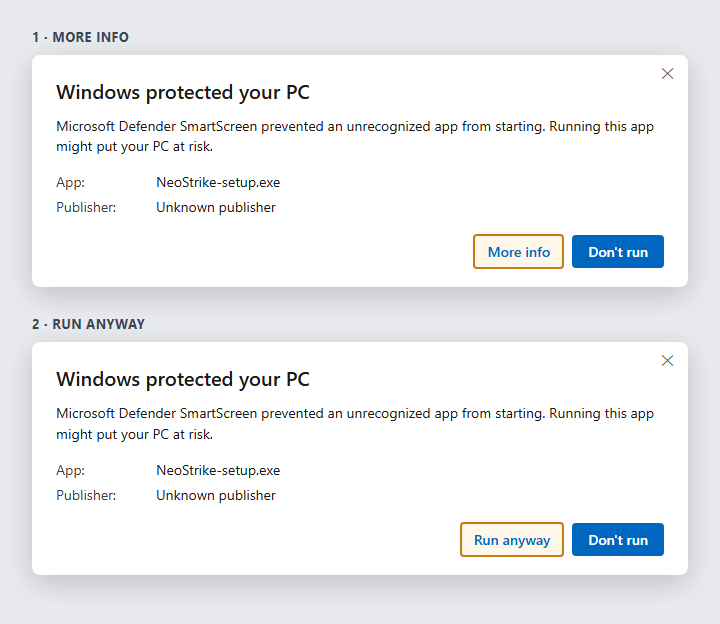
Windows may warn you, because NeoStrike is not a registered application. That alert is normal, and the installer is safe. If the message says Windows protected your PC, click More info, then Run anyway. On a French PC those buttons are Plus d’infos, then Exécuter quand même.
Click the outlined button. Leave Don’t run alone.Download NeoStrikeOptional
3D objects
These are the SimConnect models NeoStrike can place in the simulator: tanks, trucks, radars, and other ground units, plus smoke. A campaign runs without them. With them, the units on the campaign map also appear in the MSFS world.
NeoStrike installs this pack by default when you install the application. It copies neostep-neostep and neofly-neofly-smokes into every MSFS Community folder it finds. Use this file only if that automatic install did not complete.
To install it yourself, download the zip and copy those two folders into the Community folder of MSFS 2020, MSFS 2024, or both. Restart the simulator. In NeoStrike, Settings → Download SimConnect objects does the same copy.
 NeoStrike